Tutorials
Claude Code Mods for Everyday Work: A Beginner’s Guide
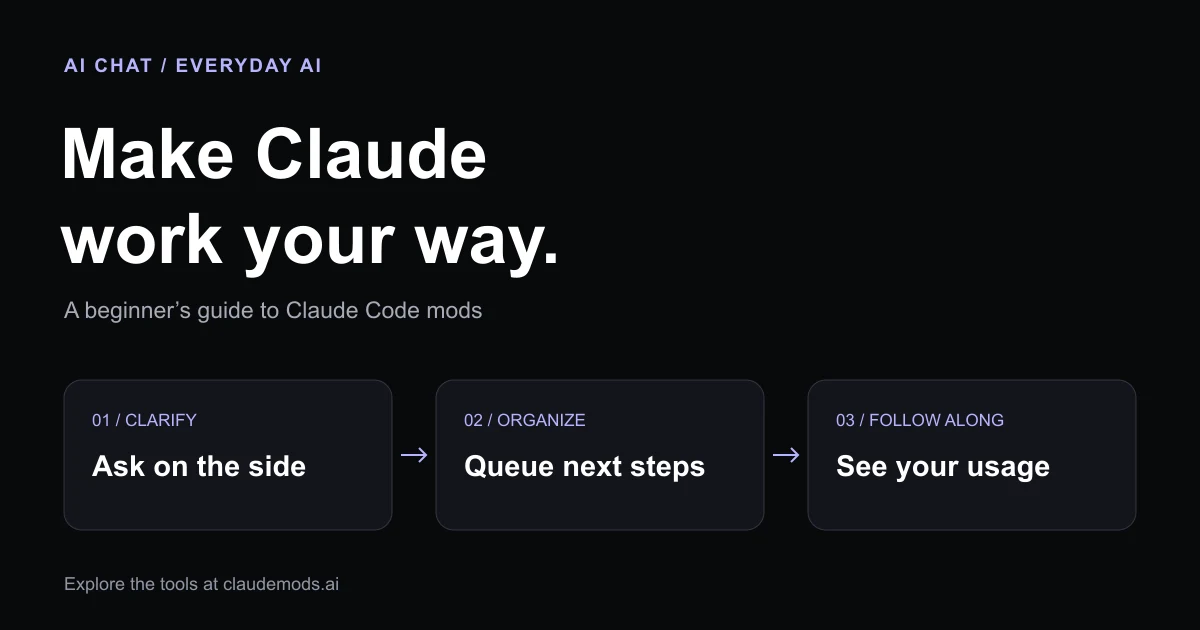
Claude Code mods are small extensions that change how a Claude Code session looks or behaves. They can add a side conversation, show usage, organize follow-up prompts, or put a game above the prompt while you wait. You do not have to build software to find those features useful.
This guide covers practical ways to use mods for writing, research, planning, and small personal projects. You can browse the tools in Claude Mods, our independent community catalog, and follow each listing to its source repository. The catalog is not an official Anthropic product.
AI Chat editorial guide · September 16, 2026. Examples below are suggested workflows based on the linked project documentation.
First, make sure you are using the right Claude
These mods run in supported versions of the Claude Code terminal application. They are not browser extensions, and you cannot install them by pasting a command into an ordinary Claude web chat or an AI Chat conversation.
A prompt tells the assistant what to do. A skill gives it reusable instructions. A mod can change the surrounding session: what is displayed, when a prompt is sent, or how an event is handled. Anthropic describes the underlying mechanism in its Claude Code mods documentation. Function hooks are an early-access feature, so compatibility and installation steps can change.
If you already use Claude Code to work with local notes, draft pages, or organize project files, mods are worth exploring. If you only want a quick answer or an email rewrite, your existing chat interface may already do the job.
1. Ask a side question without derailing your draft
You are turning rough notes into a newsletter. Halfway through, you want to ask, “What does this acronym mean?” but you would rather keep the main conversation focused on the draft.
Aside opens a separate, read-only conversation with /aside. It can discuss the existing transcript without adding its answers back to the main thread. The side conversation cannot edit files or call tools. If the main task is still running, it uses the last completed turn rather than the unfinished one.
Try it for definitions, explanations, or a quick critique of an idea. Move any decision you want implemented back into the main conversation yourself. Aside still makes model requests, so it is not free extra AI usage. See the Aside installation guide for current requirements.
2. Keep the next few tasks in order
Suppose Claude is preparing a first draft from your notes. You already know the next two requests: produce five headline options, then turn the result into a short social post.
Claude Queue lets you hold follow-up prompts and send them in sequence after turns finish. Its queue can be edited, reordered, or cleared. That is useful when the next steps are routine and do not require a decision from you.
For anything that needs your review, wait and read the result before sending the next instruction. A queue is not an approval checkpoint. The project README also notes that interrupting a turn with Escape can release the next queued prompt; use /q clear when you intend to remove the pending queue.
3. Notice when a long conversation is getting crowded
A research session can accumulate notes, drafts, and revisions until it becomes hard to tell what still fits in context. Context Lens displays context usage and growth, helping you notice when a session is approaching compaction. Its command is /context-lens.
Use that signal to save a short project brief: the goal, decisions, source files, and remaining questions. This is a workflow suggestion, not a promise that the mod preserves every detail for you.
4. See usage before starting another long task
Quota Meter shows supported subscription usage windows and reset information with /quota. Token Ledger shows token and cost information with /ledger.
They answer different questions: “How much plan capacity is left?” and “What is this session consuming?” Quota Meter requires a supported Claude subscription; API-key sessions do not have those plan windows. Neither tool increases your allowance, and a displayed cost estimate is not a billing guarantee. Check the maintainer’s setup instructions before installing.
5. Make waiting a little more fun
Some mods are simply enjoyable. CC Arcade puts small games above the Claude Code prompt, including Snake, Tetris, and 2048. Open the arcade while a longer task is running, then return to reviewing the output.
This does not make Claude finish faster. It changes what you can do during the wait. The games themselves run locally rather than using model tokens for each move; the underlying Claude task still uses its normal allowance. Check the CC Arcade repository for the supported terminal and current installation steps.
How to choose and install your first mod
Pick one small annoyance. Start with side questions, context visibility, queued prompts, or waiting. Avoid installing several overlapping tools at once.
Find a matching listing. Use the categories and descriptions in the Claude Mods catalog, then open the linked repository.
Check compatibility. Read the required Claude Code version, supported terminal, and function-hook setup. A mod that works in an interactive terminal may not work in another interface.
Read what it can access. Mods are software running in your work environment. Review the source, permissions, and maintainer before using one with private material.
Follow that project’s installation instructions. Marketplace names and plugin names differ. If instructions require a settings change, merge it into your existing settings instead of replacing the whole file.
Try a disposable project. Use sample notes, confirm the command works, and learn how to disable or uninstall the mod before adding it to your daily setup.
A simple first experiment
Create a folder with a copy of some non-sensitive notes. Ask Claude Code to turn them into a one-page plan, with a separate list of missing information. Add one mod that helps you follow the work: Aside for clarification, Context Lens for a long session, or a usage display for visibility.
Read the plan against your original notes. Check names, dates, and claims. Keep the mod if it makes that process easier. The useful outcome is a workflow you understand and can repeat.
Frequently asked questions
Do I need to be a programmer?
You do not need to write code to use these workflows, but you do need to be comfortable installing Claude Code plugins and following terminal instructions. A normal chat app is easier if you do not need local files or session customization.
Are Claude Code mods the same as skills?
No. Skills primarily supply instructions for a task. Mods can alter the session’s behavior or interface through supported extension mechanisms. Read the individual project description to understand which type of tool you are installing.
Are mods free?
Check each repository’s license and terms. A mod may be available without a separate purchase, while Claude access and any model requests it makes still have their usual costs or limits.
Where can I find more Claude Code mods?
Explore the Claude Mods catalog for workflow tools, dashboards, interface additions, and games. Start with one that solves a problem you actually encounter, and use its source repository as the reference for installation and updates.


